How to combine iCloud and Google calendars into one family view
The most common family calendar problem isn't missing features. It's that the family doesn't share a platform. One parent lives in iCloud, the other runs work life through Google, the kids' schedules arrive from a school portal, and no single app shows all of it. The fix is a standard that's been around since the late '90s and that most people have never had to think about: the calendar feed link.
Every calendar already publishes a feed
iCloud, Google, Outlook, and nearly every school or sports system can expose a calendar as an ICS feed: a private URL that serves the calendar's events to anything that asks. Subscribe to a feed and you get a read-only, continuously updating copy. Nobody switches platforms, nobody re-enters events, and nobody hands over an account password. The link is the whole handshake.
That last property matters more than it looks: a tool that reads feed links can't touch your real calendar, because the link only serves events. Guard the URL itself, though: anyone who has it can read that calendar, so treat it like a password and regenerate it if it leaks.
Getting the link from iCloud
- On iPhone, open the Calendar app and tap the ⓘ next to the calendar you want to share. On a Mac, right-click the calendar in the sidebar and open its sharing settings.
- Turn on Public Calendar. The name oversells it: the calendar isn't listed anywhere public, and only someone holding the link can see it.
- Tap Share Link… and copy the
webcal://URL.
Getting the link from Google
- In Google Calendar on the web, hover the calendar in the left sidebar, click ⋮, then Settings and sharing.
- Scroll to Secret address in iCal format and copy it. (Google at least names it honestly.)
School portals, team apps, and booking systems usually hide the same thing behind a button labeled "Subscribe," "Export," "iCal," or "Add to calendar." You want the URL, not the downloaded file.
Where to point the links
Into each other: Google Calendar can subscribe to the iCloud link ("From URL" under Add calendar) and Apple Calendar can subscribe to the Google one (File → New Calendar Subscription on Mac, or Add Subscription Calendar on iPhone). This gets each parent's phone showing both calendars, and it's free. The limits: subscriptions are read-only, refresh on each platform's own schedule (sometimes hours), and the merged view still lives on individual phones.
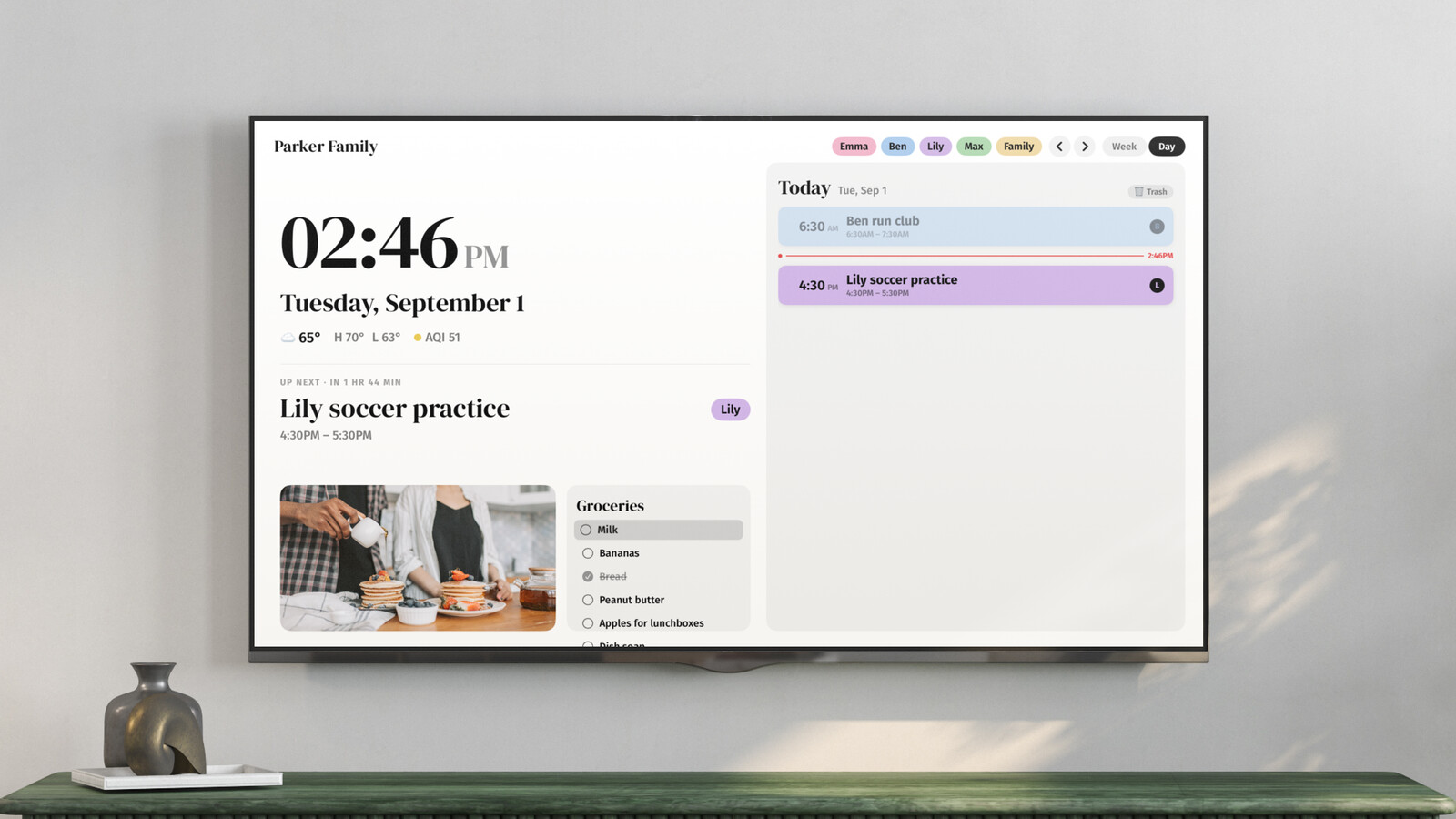
Into one shared view: this is the setup we built Callie around. You add each feed link once, under the person it belongs to (step-by-step here), and every linked screen (Apple TV, iPad, iPhone, web) shows one combined week with each person in their own color. Callie refreshes every feed regularly, so new events usually appear within a few minutes; it tags events to people automatically from names in titles, and nothing about your underlying calendars changes: iCloud stays iCloud, Google stays Google.
One calendar per person, or one for the family?
Both work; feeds don't care. A single shared "Family" calendar is simpler to manage and fine when one parent is the scheduler. Per-person calendars keep work events out of the family view and make color-coding automatic, since each feed is already one person. Most families we see land on per-person for the adults plus a shared one for everything-else, and color-code from there.
However you combine them, the feed link is the trick worth remembering: any calendar, from any platform, reduced to a URL you can point wherever the family actually looks.
Keep reading
- The best family calendars in 2026: apps, displays, and your TV
- 6 Skylight Calendar alternatives worth a look in 2026
- Is the Skylight Calendar worth it? The five-year math
Callie puts the family calendar on the Apple TV, iPad, and iPhone you already own. See how it works or start free.